
Check if your email is on leaked lists, see which sites it came from, and change any repeated password. Then turn on two-step verification in Gmail or Outlook.
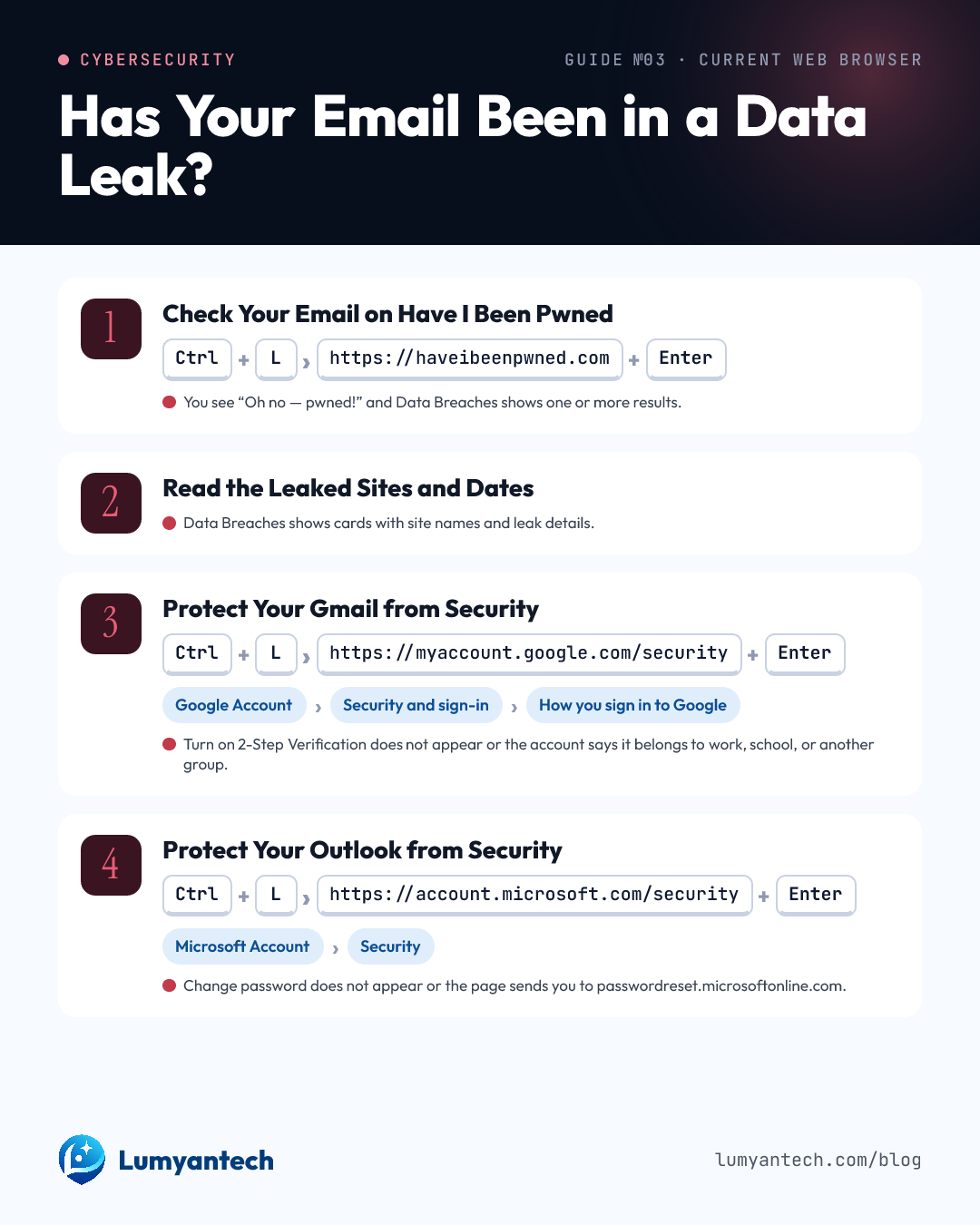 The guide in one imageView and download →
 You will know if your email is in leaks and you will protect your main account with a new password and a second step.
Before you start
- Have access to your main email.
- Keep your phone nearby to get codes or notifications.
- If you use a password manager, open it.
- Do not type your password on Have I Been Pwned.
- Do this on your own device and a trusted connection.
Check Your Email on Have I Been Pwned
Goal: See if your email is in a leaked database.
Ctrl+L→ typehttps://haveibeenpwned.com→Enter
Same in Windows 10.
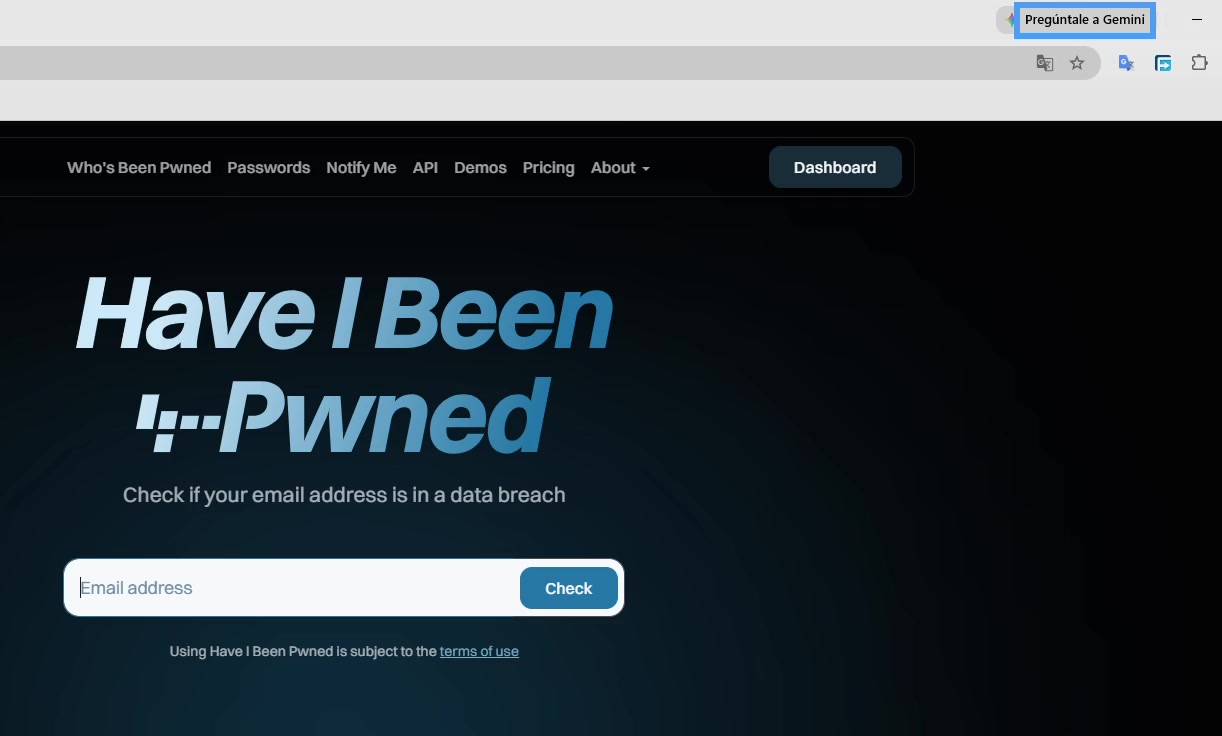
- Good: You see “Good news — no pwnage found!” and Data Breaches shows 0.
- Warning: The page may show Sponsored or suggestions below the result; these are not part of your check.
- Problem: You see “Oh no — pwned!” and Data Breaches shows one or more results.
Careful: Do not type your password on this page. To check email leaks, you only need your email.
Read the Leaked Sites and Dates
Goal: See where the leak came from and how many times your email appears.
Same in Windows 10.
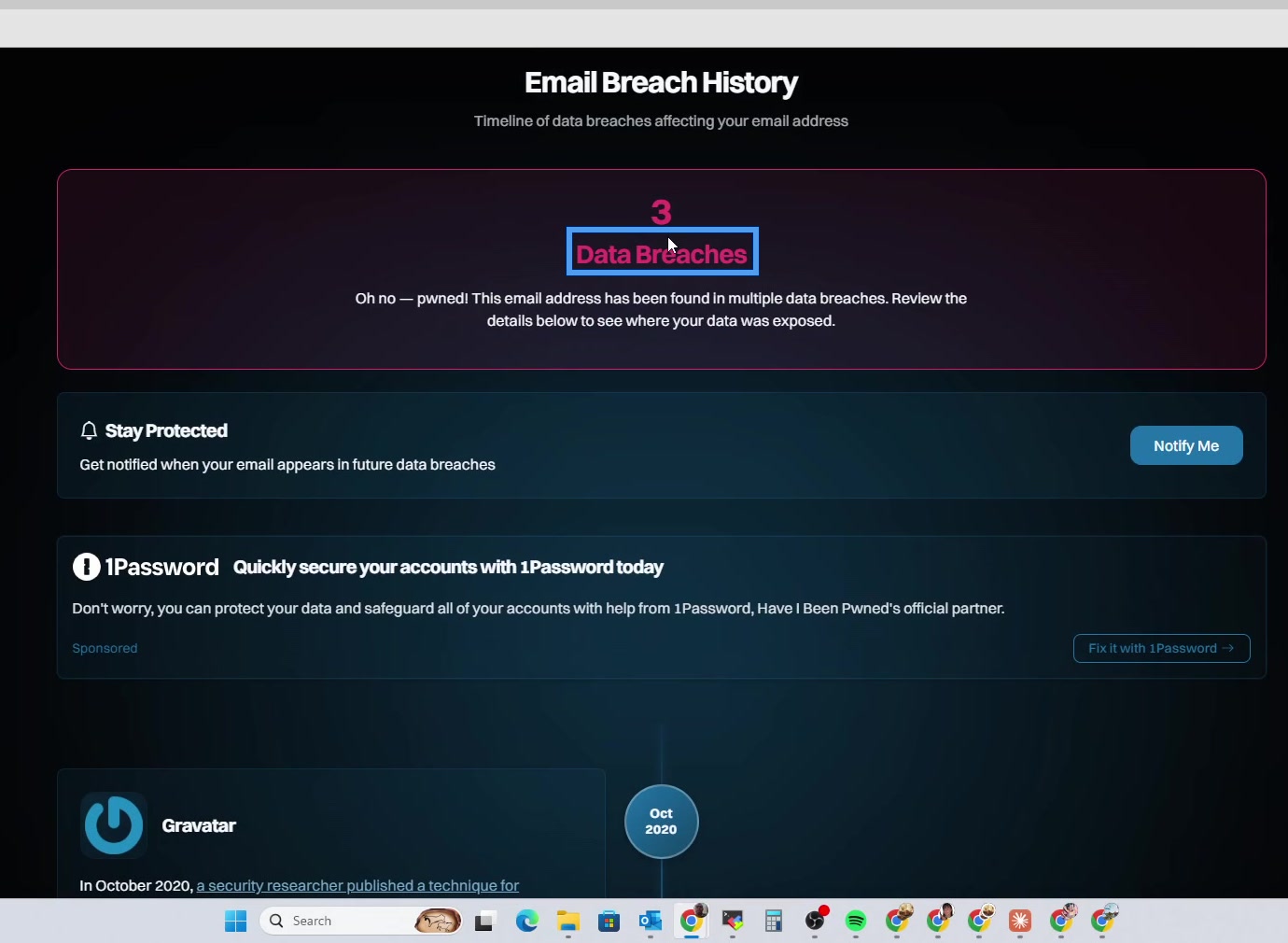
- Good: Data Breaches shows 0 and there are no site cards below.
- Warning: Pastes shows results; Have I Been Pwned keeps this separate from Data Breaches.
- Problem: Data Breaches shows cards with site names and leak details.
Careful: Do not open strange links or download files to 'see the leak.' Stay on the results page.
Protect Your Gmail from Security
Goal: Change your Google password and turn on the second step if your email is Gmail.
Ctrl+L→ typehttps://myaccount.google.com/security→Enter
Google AccountSecurity and sign-inHow you sign in to Google
Same in Windows 10; the screen may look a bit different depending on the browser.
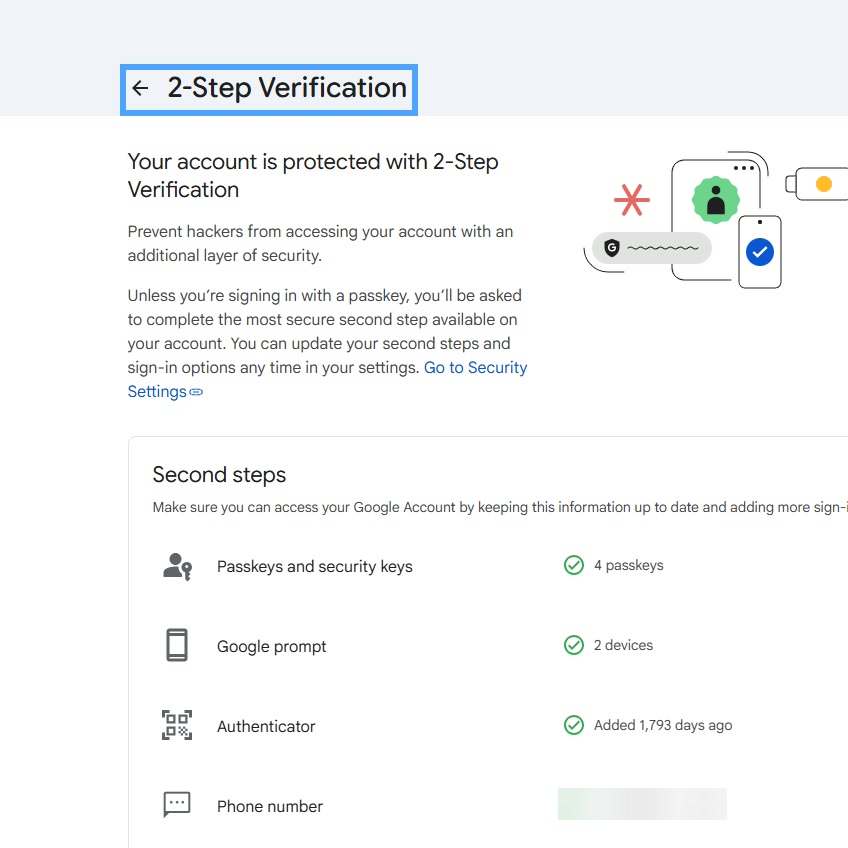
- Good: In How you sign in to Google, you see Password and 2-Step Verification or Turn on 2-Step Verification.
- Warning: Google may ask you to sign in again before changing the password.
- Problem: Turn on 2-Step Verification does not appear or the account says it belongs to work, school, or another group.
Careful: Do not sign out on your phone during this step. You may need it to approve access. When you change the password, Google may sign you out on other devices.
Protect Your Outlook from Security
Goal: Change your Microsoft password and turn on the second step if your email is Outlook.
Ctrl+L→ typehttps://account.microsoft.com/security→Enter
Microsoft AccountSecurity
Same in Windows 10; the screen may look a bit different depending on the browser.
- Good: Additional security and Two-step verification shows Turn on or Turn off.
- Warning: Microsoft may show a QR code during Authenticator app setup.
- Problem: Change password does not appear or the page sends you to passwordreset.microsoftonline.com.
Careful: Do not remove recovery methods you still use. If you lose the second step, you may get locked out or take days to get back in.
Repeat the search with your other emails and change any repeated password that shows up in Data Breaches.
If nothing worked
Google AccountSecurity and sign-inRecent security activity
Google AccountYour devicesManage devices
Microsoft AccountSecurityRecent activity
If you cannot sign in, use the official Google or Microsoft recovery. Then check recent activity and connected devices before using the account again.
Sources
- haveibeenpwned.com · Have I Been Pwned: Check if your email address has been exposed in a data breach
- haveibeenpwned.com · Have I Been Pwned: Frequently Asked Questions
- haveibeenpwned.com · Have I Been Pwned: API Documentation
- haveibeenpwned.com · Have I Been Pwned: Who's Been Pwned
- support.google.com · Combinaciones de teclas de Chrome - Ordenador - Ayuda de Google Chrome
- support.microsoft.com · Keyboard shortcuts in Microsoft Edge | Microsoft Support
Verified on October 17, 2026
Would you rather we handle it? Book a call