
When Windows runs out of space, it can get slow and updates may fail. You will see what is using space, clean up temporary files, and check Downloads and the Recycle Bin without deleting your own files by mistake.
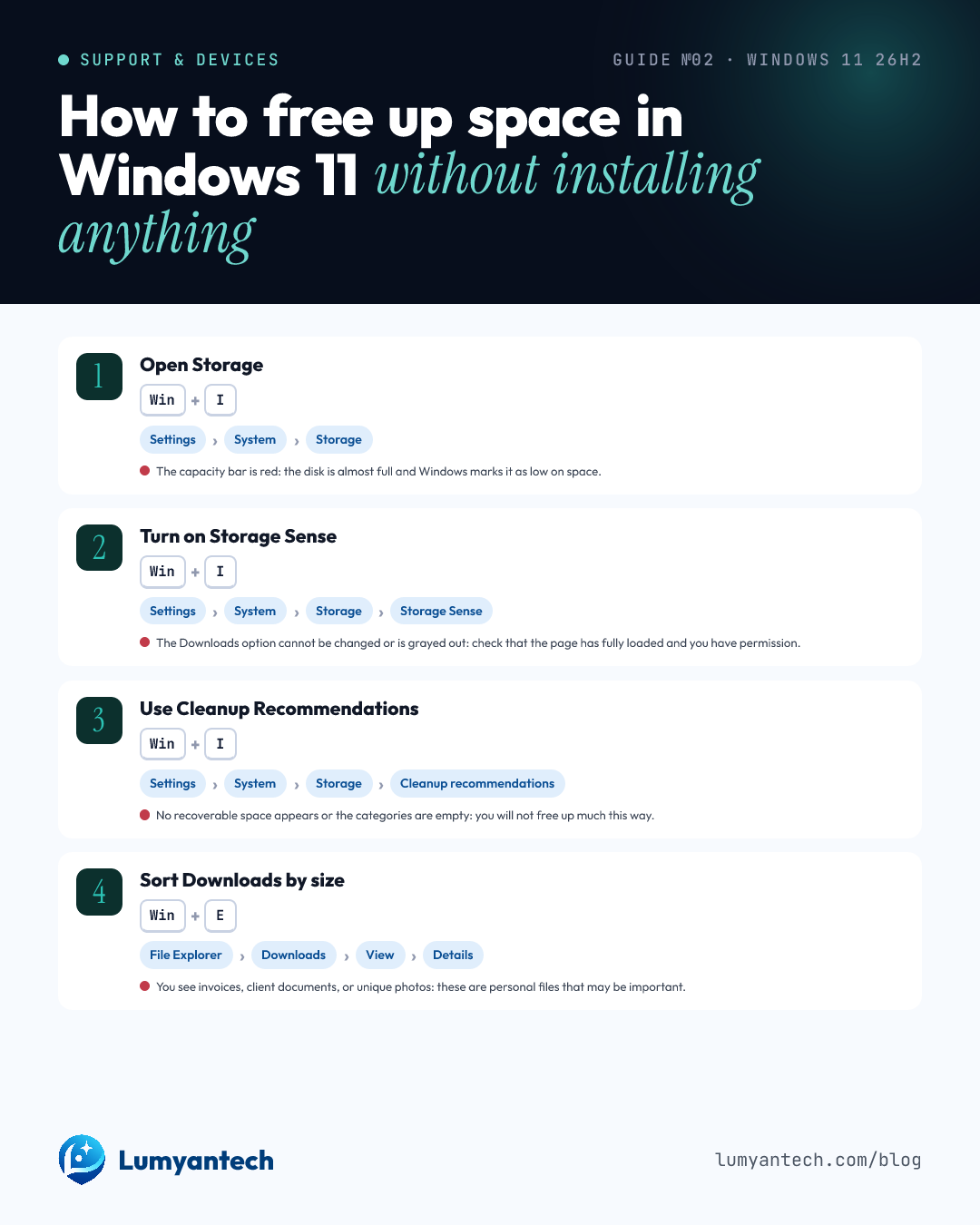 The guide in one imageView and download →
 Free up space on the C: drive using only Windows tools and checking what you delete first.
Before you start
- Save any open documents.
- Close programs you are not using.
- Have a USB drive ready if you want to move large files.
- Do not empty the Recycle Bin until you check its contents.
Open Storage
Goal: See what types of files are taking up space before deleting anything.
Win+I
SettingsSystemStorage
In Windows 10, no longer supported after October 14, 2025, the path is also Settings > System > Storage.
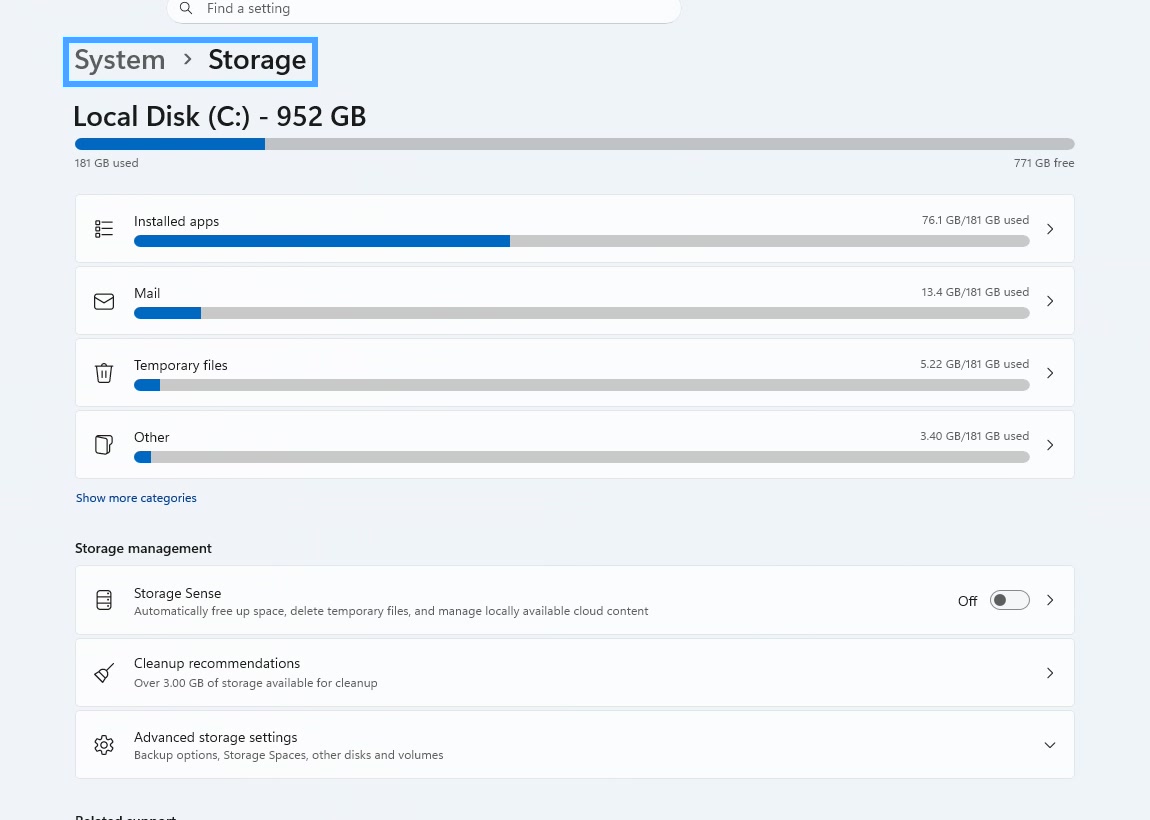
- Good: The C: drive shows a capacity bar and categories with sizes.
- Warning: A personal category, like Documents or Pictures, looks large: it may have your own files.
- Problem: The capacity bar is red: the disk is almost full and Windows marks it as low on space.
Careful: Do not delete from here without checking which category you are opening. Similar names do not always mean the files are safe to remove.
Turn on Storage Sense
Goal: Let Windows remove safe temporary files without installing extra cleaners.
Win+I
SettingsSystemStorageStorage Sense
In Windows 10, no longer supported after October 14, 2025, it is also in Settings > System > Storage.
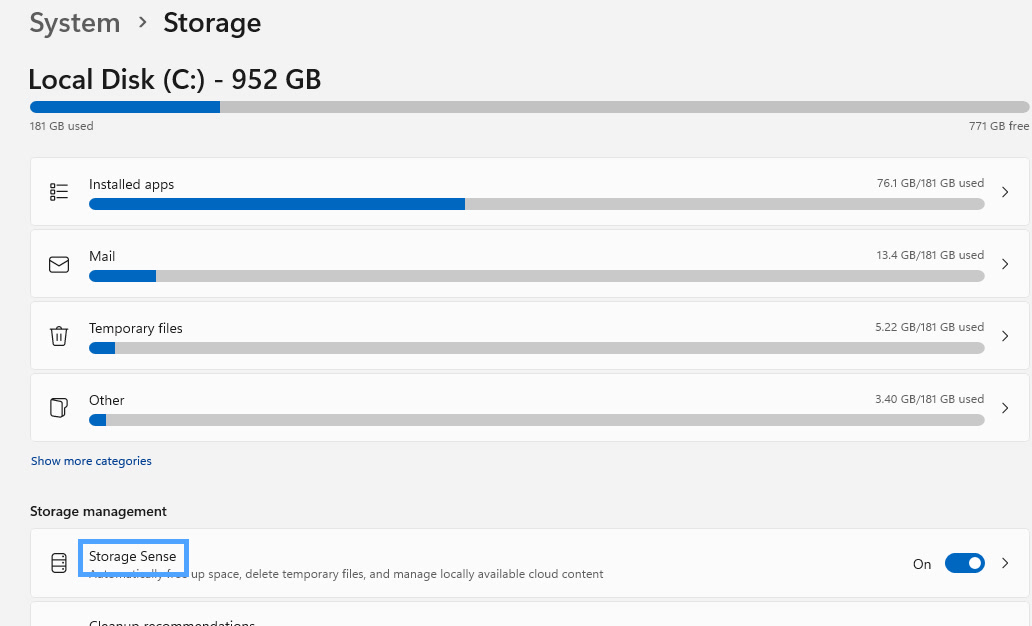
- Good: Storage Sense shows as On.
- Warning: Downloads shows an auto-delete rule: that folder may be included in future cleanups.
- Problem: The Downloads option cannot be changed or is grayed out: check that the page has fully loaded and you have permission.
Careful: Do not set Downloads to delete automatically if you use that folder for work files. Storage Sense only works on the system drive, usually C:, and can also remove items from the Recycle Bin based on the rule you choose.
Use Cleanup Recommendations
Goal: Remove files suggested by Windows after checking each category.
Win+I
SettingsSystemStorageCleanup recommendations
In Windows 10, no longer supported after October 14, 2025, if Cleanup recommendations does not appear, use Disk Cleanup.
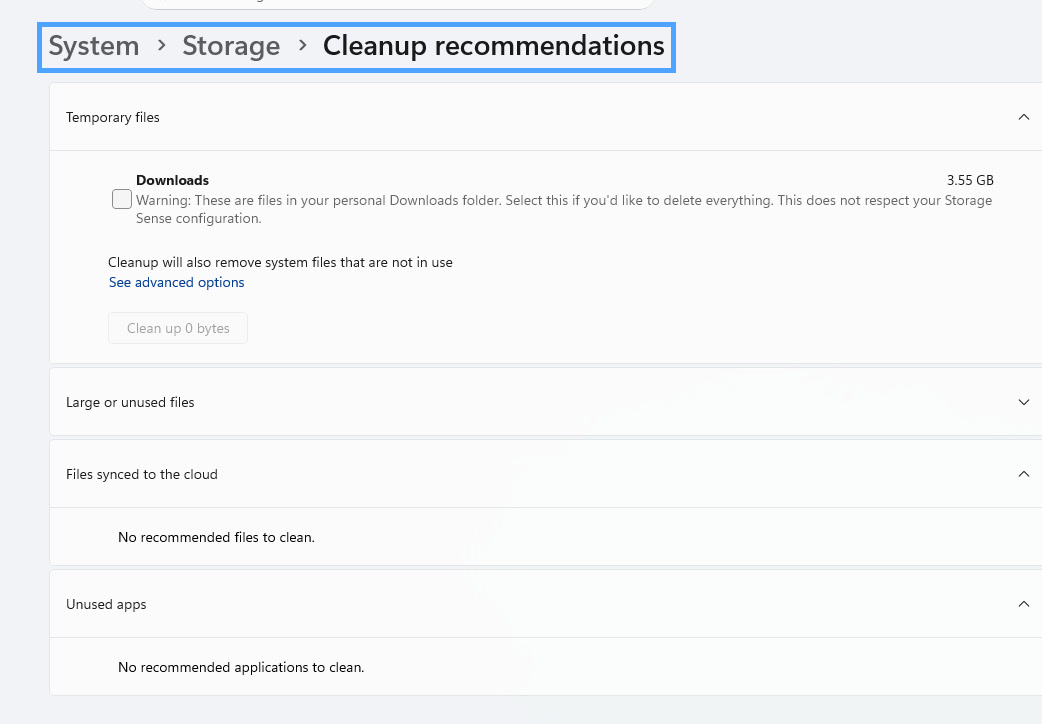
- Good: Windows shows how much space you can save before cleaning.
- Warning: Previous Windows installations appears: deleting it can remove the option to go back to the last version.
- Problem: No recoverable space appears or the categories are empty: you will not free up much this way.
Careful: Do not select Previous Windows installations if you just updated and still want to go back. Do not select apps if you are not sure no one uses them.
Sort Downloads by size
Goal: Find large files you can delete or move without touching important documents.
Win+E
File ExplorerDownloadsViewDetails
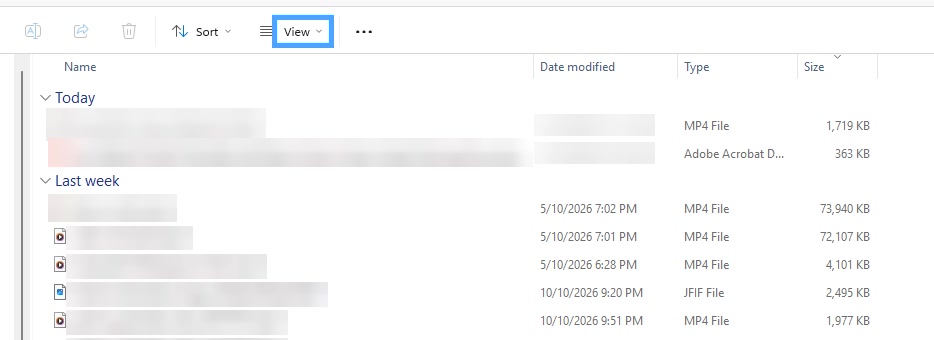
- Good: The Downloads folder shows columns like Name, Date modified, Type, and Size.
- Warning: You see installers, videos, or large compressed files: they can take up a lot and not all are junk.
- Problem: You see invoices, client documents, or unique photos: these are personal files that may be important.
Careful: Downloads is not automatic trash. Many people save important documents there without realizing.
Check the Recycle Bin
Goal: Make sure there is nothing important before freeing up final space.
Recycle Bin
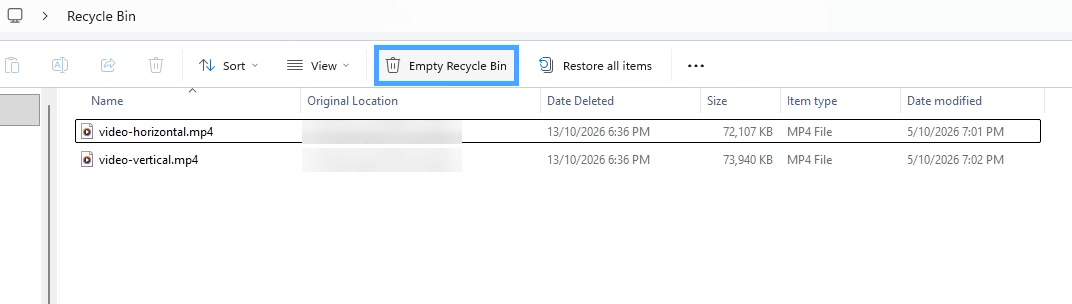
- Good: The Recycle Bin is empty after you confirm.
- Warning: You see client names, recent documents, or photos: these may be important files.
- Problem: You do not see the Recycle Bin on the desktop: the icon may be hidden.
Careful: Emptying the Recycle Bin removes files from your computer for good and frees up space. Check before you confirm.
Check Downloads this week and move large files you need to keep off the PC.
If nothing worked
SettingsSystemStorageTemporary files
SettingsSystemStorageCleanup recommendations
SettingsPersonalizationThemesDesktop icon settings
If the disk is still full, go back to Storage and open Temporary files. If Windows needs space to update, use Cleanup recommendations or Disk Cleanup. If you do not see the Recycle Bin, restore it from Themes > Desktop icon settings.
Sources
- support.microsoft.com · Liberar espacio en unidades de disco en Windows
- support.microsoft.com · Administrar espacio de unidad con el Sensor de almacenamiento
- support.microsoft.com · Configuración de almacenamiento en Windows
- support.microsoft.com · Explorador de archivos en Windows
- support.microsoft.com · Métodos abreviados de teclado de Windows
- support.microsoft.com · Buscar la papelera de reciclaje en Windows
Verified on October 15, 2026
Would you rather we handle it? Book a call